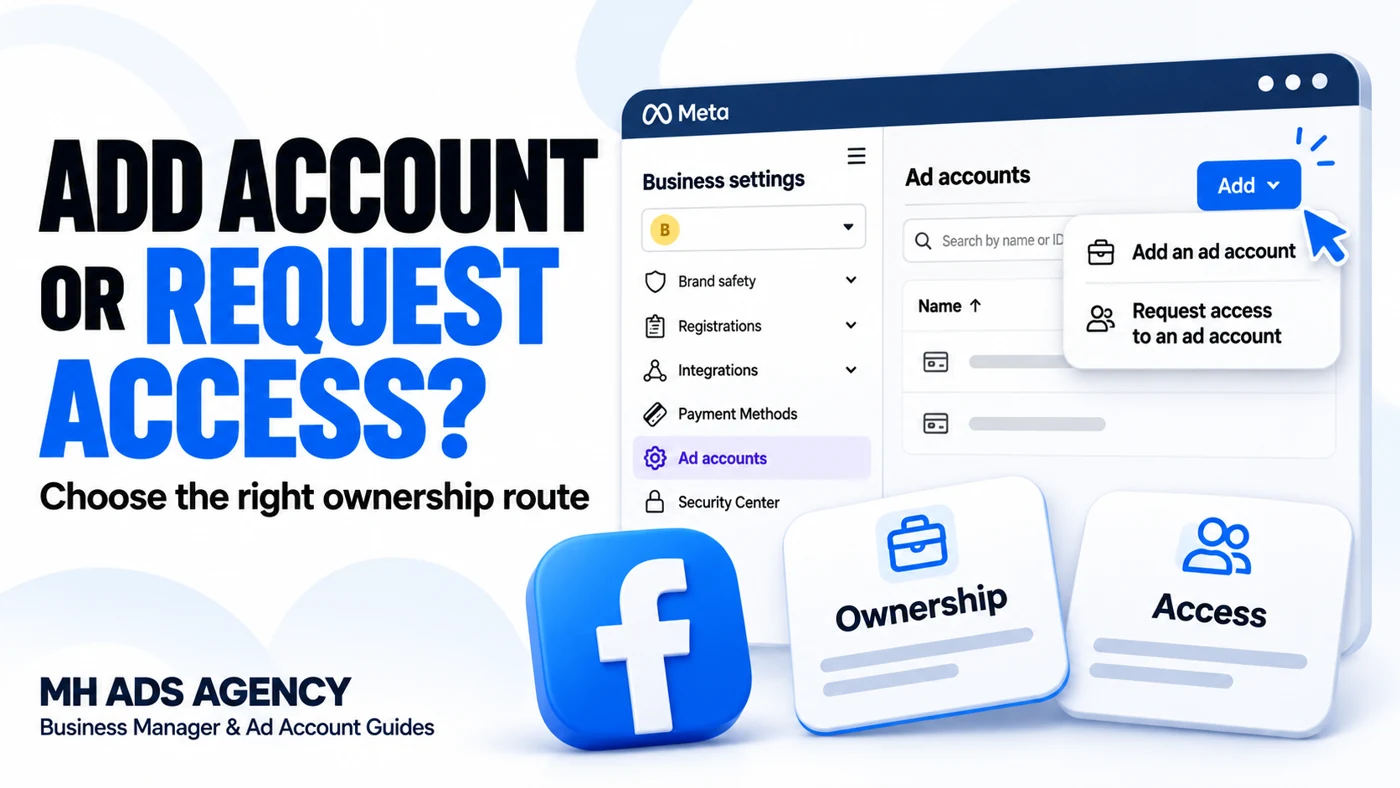
Adding an ad account and requesting access to an ad account are different operations. Start with the current owner and your business’s role. The goal is to give the right team permission without creating an unintended ownership arrangement.
Identify the owner first
Record the ad account ID and the business that owns it. Confirm whether your business is the advertiser or a service provider. An agency’s campaign management agreement should explain the access needed, rather than leaving ownership to assumptions.
Review the route offered for your own account
When the business genuinely owns an existing account, inspect the add or claim option provided in its settings. Read the ownership warning before confirming: an account addition can have lasting effects and may not be reversible. Check eligibility and portfolio capacity as well.
Arrange access for a client account
When another business owns the asset, use the appropriate partner or request-access process. Identify the exact account and required tasks. The owner should review the recipient business and permissions before approving.
Verify the result
- Confirm the owner still matches the agreed arrangement.
- Check that the intended partner has the correct asset assignment.
- Assign the agency’s own staff where required.
- Test campaign and reporting access.
- Check Page and dataset permissions separately.
Frequently asked questions
Does BM verification automatically give access to a client account?
No. The asset’s permission arrangement still needs to be approved and assigned.
Should I claim an account to fix missing access?
First ask the owner to inspect the existing invitation and permissions. An ownership action should not be used as a shortcut for an unresolved access problem.
Related guides
- Meta Business Manager Features for Agencies and Teams
- Meta Business Manager Admin vs Partner Access Explained
Need help reviewing your business setup? Contact MH Ads Agency to discuss your own portfolio, verification task and required feature.
References and further help
Updated November 9, 2026. Cover artwork illustrates Meta business tools; it is not evidence of any business’s verification status. Menu labels, available features and requirements can vary. Follow the current instructions in your own account.