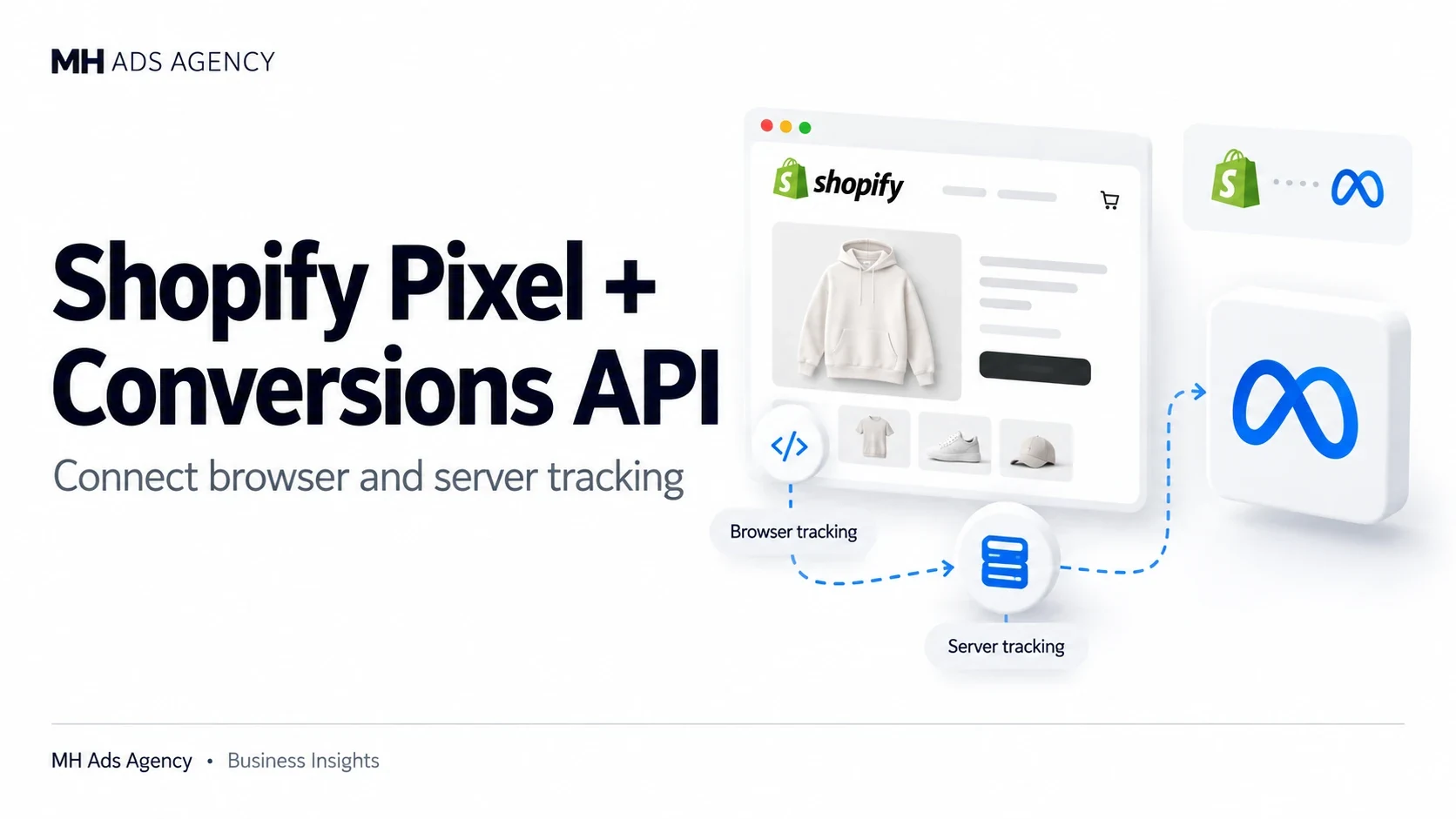
Reliable tracking helps you understand which actions customers take after visiting your store. Shopify's Facebook & Instagram integration provides a supported route for connecting Meta tracking.
Connect the correct assets
Use the Facebook & Instagram sales channel to connect the appropriate business assets and select your intended pixel or dataset. Confirm that the connected business has the required permissions.
Review the channel's current data-sharing options. Shopify documents different sharing levels; select one that fits your setup, customer disclosures, and applicable consent requirements.
Prevent duplicate installations
Check whether tracking is already installed through theme code, another app, or tag management. Multiple installations can create duplicate events or confusing diagnostics.
Browser and server events should be coordinated through the integration, including deduplication where the same action is sent through both routes.
Test the customer journey
Use available testing and diagnostic tools to verify page views, product interactions, and purchases. Check purchase value and currency, not just whether an event appeared.
Compare event records with real orders and investigate mismatches before relying on campaign reporting. A connected integration is the beginning of verification, not proof that every event is correct.
For your Shopify setup, prioritize accurate events, consent-aware sharing, and ongoing diagnostics.