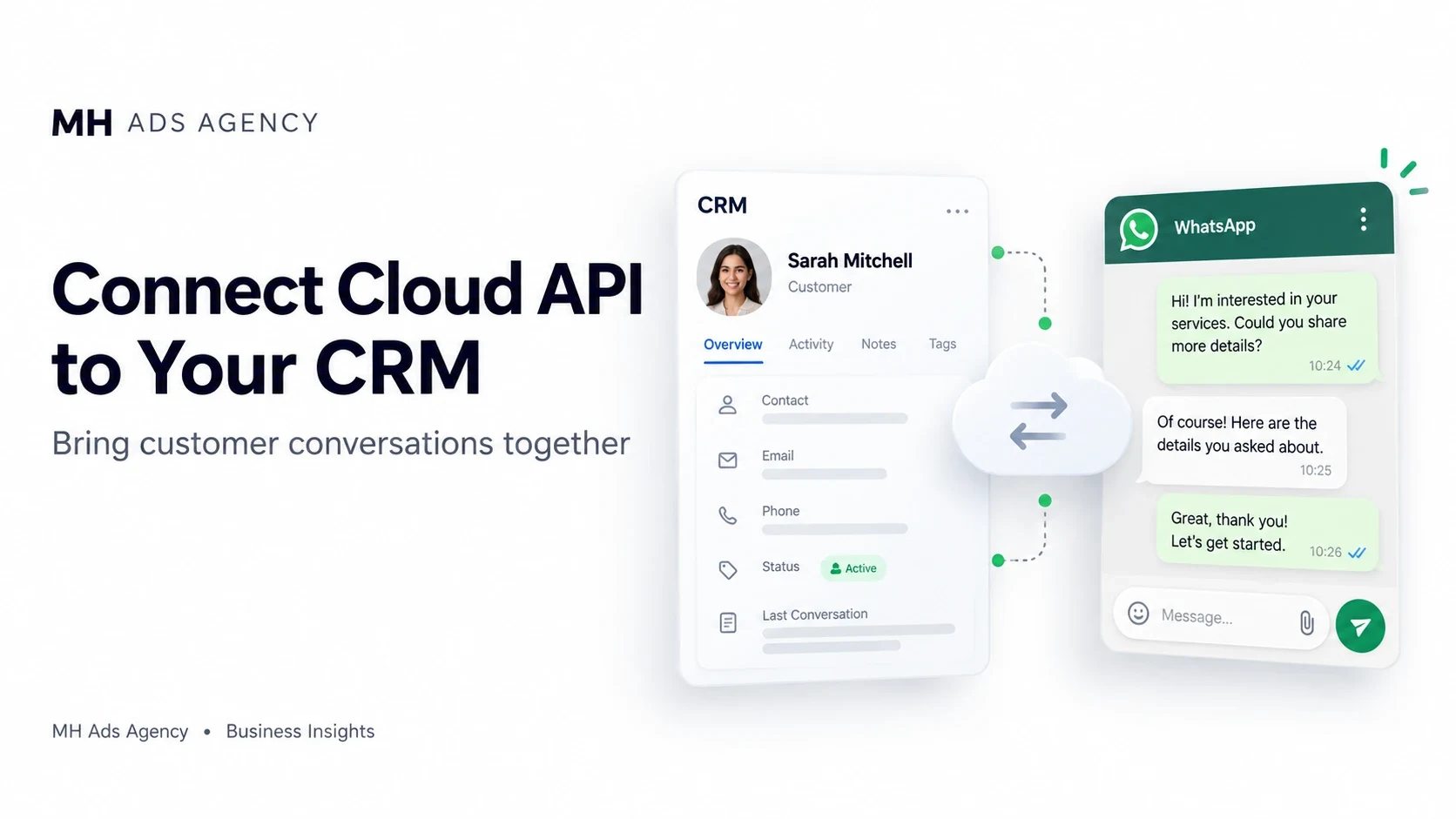
A CRM connection can bring WhatsApp conversations into your sales or support workflow. The exact setup depends on your chosen provider and its supported integration.
Choose the workflow first
Decide whether you need a shared inbox, lead assignment, order notifications, or follow-up automation. Check the provider's features, user permissions, export options, and charges before onboarding.
Connect the correct business resources
Use the provider's supported signup route to connect the appropriate business, WABA, and phone number. Confirm ownership and requested permissions.
For custom integrations, credentials and webhook configuration need careful handling. Keep tokens out of public pages and shared screenshots.
Configure messages and customer records
Connect contacts using a consistent identifier, organize agent responsibilities, and add approved templates where required. Preserve opt-in and opt-out status so automations respect customer choices.
Provide an escalation path for customers who need a person.
Test before sending at scale
Check incoming messages, agent replies, template delivery, status updates, and automation triggers with a small test. Verify that a workflow does not send the same notification repeatedly.
Discuss your CRM and number requirements with MH Ads Agency before choosing an API setup.